

A normal morning might involve a spreadsheet, a browser and accounting software. Then a meeting starts, adding a video call and a PDF without removing the work already open. That is a useful memory test, unlike choosing from a processor badge alone. This guide compares the P1403CVA-C5H08-50W and C5H16-50W listed at TECHBUY on 11 October 2026. Both list Core 5 210H, a 512GB SSD and a 14-inch Full HD screen. The advice is based on configuration and workflow, not TECHBUY benchmark measurements.
Start with what stays open together

Write down a representative session: websites you need, the spreadsheet you cannot close, email, PDFs and any video meeting with screen sharing. Someone entering orders through one browser application has different needs from a colleague handling several desktop tools. Tab count is only a rough clue. A complex browser application may demand more resources than several simple reading pages, so the actual task matters more than a tidy number.
A tightly controlled, light workflow makes the 8GB option worth testing. Opening one blank document is not a meaningful demonstration, however. Keep your usual tools open and move between them. If the price difference is affordable, avoiding the need to close work may be more valuable than a higher processor badge paired with limited memory. This is a purchasing preference to validate with your files, not a guaranteed performance result for either machine.
- List simultaneous applications rather than everything you have installed.
- Use anonymised copies instead of customer information during a shop demonstration.
More memory does not double every task
The two configurations share their main processor and storage specification. The practical question is whether your running applications need more room. Extra memory will not automatically halve report export time. Network delays, a remote application server or an inefficient document can remain the limiting factor. Identify where waiting occurs before spending the budget, rather than treating every pause as proof of insufficient RAM.
Simple documents and moderate spreadsheets may feel similar in many individual actions. Observe what happens when a meeting opens, when you return to a file, and when you switch windows. If the 8GB configuration repeatedly forces you to close applications in your representative session, there is a reason to favour 16GB. If both pass comfortably, money retained for a useful monitor or accessory may matter more than capacity that the current workload does not use.
- Use the same files, applications and network when comparing.
- Windows startup time alone is not a useful memory-capacity decision.
Price the whole upgrade, not only the extra module
The ASUS ExpertBook P1 specifications list DDR5 options and two SO-DIMM slots for the P1403 family, with configuration differences by model. That supports asking about expansion; it does not establish the installed module arrangement in every unit. Ask the seller to confirm the exact C5H08-50W memory layout before ordering an additional module. A family specification page should never be treated as an inventory inspection.
Add the module, installation cost and time away from work to the 8GB purchase price, then compare that total with the ready-to-use 16GB option. Ask about warranty handling, stability checks and whether an original module will be returned. For a team, identical configurations can also simplify support. Avoid opening a new machine merely to count slots when you have not checked the applicable procedure and warranty conditions.
- Confirm supported memory type, speed and module combination.
- Have the upgrade checked before moving work data onto the laptop.
Try the screen, keyboard and your accessories

Additional RAM cannot enlarge text on a 14-inch screen or change how the keyboard feels. Open a typical spreadsheet, set a comfortable display scale and see how many useful columns remain visible. Frequent number entry may justify a separate keypad or a larger machine. If you move between rooms or sites, pack the laptop and charger together. Your daily carrying load is the complete kit, not just the chassis weight shown in a listing.
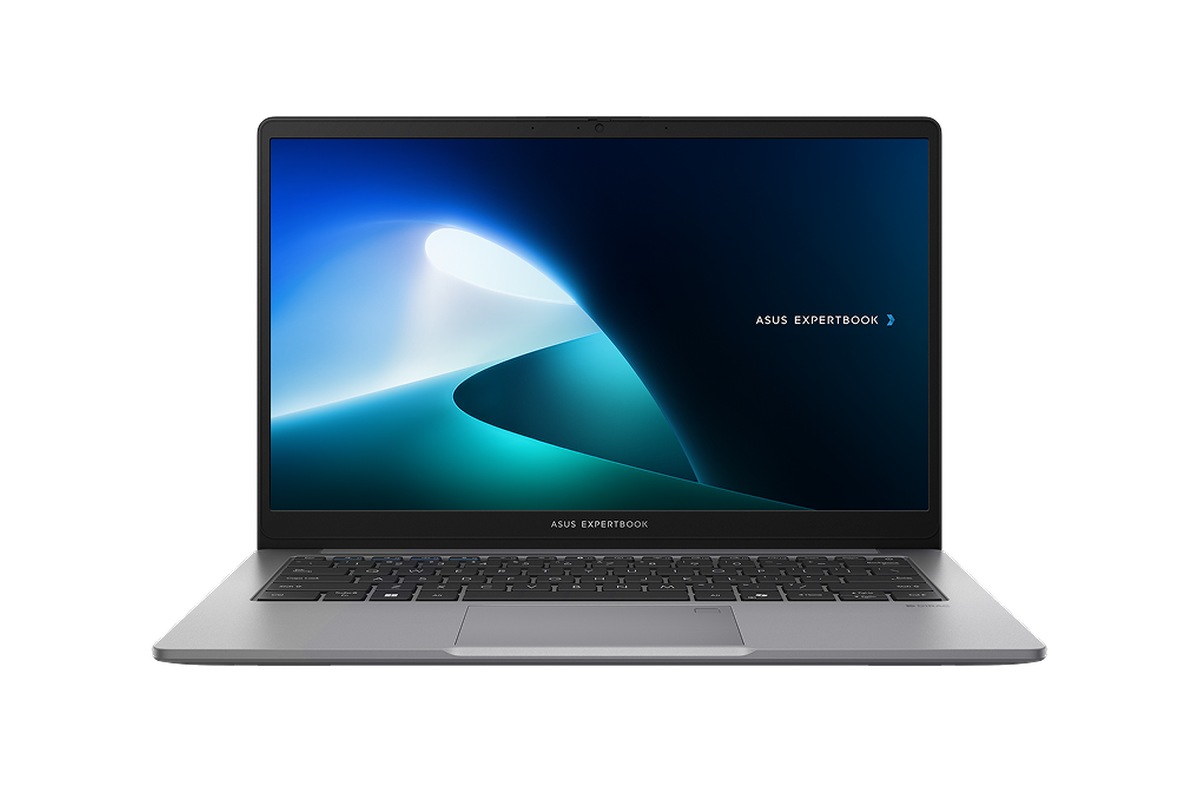
An angled product image helps show the keyboard and side layout, but it cannot confirm your accessories work. Bring a mouse, a USB device or the adapter used with a meeting-room projector. Try the actual connection sequence. These two listings use Windows 11 Home, so ask IT about company requirements before ordering. The guide to Windows Home or Pro for work helps separate that software decision from choosing RAM capacity.
Finish with a representative short test
Prepare an ordinary spreadsheet, a PDF and the websites normally needed for your job. Enter data, look up a detail, return to the document and, if available, make a trial video call. Do not sign into a company account on an uncontrolled demonstration machine. Ask staff to create an equivalent session with sample data, or use a dedicated trial account. The purpose is to reproduce the task, not to expose personal or business information.
Note which action is slow and whether it happens with one application or only while several tasks remain open. Repeat in comparable conditions before blaming memory alone. Choose 8GB when a light workload passes and the saving is meaningful. Give 16GB priority when multitasking is a daily habit or you want to avoid an immediate upgrade. The product links below display current catalog prices and availability rather than locking an old price into the article.
- Match C5H08-50W or C5H16-50W to the order.
- Ask for the upgrade total before comparing purchase prices.
- Check software, display comfort and keyboard suitability before paying.
Conclusion
Choose this ExpertBook P1 pair around a real working day, not a promise that more memory makes everything faster. 8GB is a conditional budget option; 16GB deserves the first test when several jobs routinely remain open. With a complete upgrade quote and an appropriate demonstration, the decision becomes more useful than comparing processor names alone.


